An organized email inbox means more productive work and greater control over communication and tasks. If you don't maintain order in your email, you waste a lot of time browsing and checking whether you've actually replied to all important messages. Inbox Zero is an email organization method that will give you peace of mind and ensure you never miss an important email.
The system is very simple. You can use it regardless of which email provider you use and whether you check email in a browser (e.g. Gmail, Outlook, ProtonMail) or in a mail client (Mozilla Thunderbird, Outlook, Apple Mail).
Folders/Labels for Organization
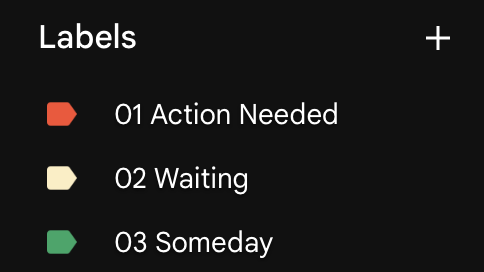
You only need three folders (labels in Gmail) to organize your email:
- 01 Action Needed — messages that require some action, but that action will take more than 2 minutes (e.g. reviewing a contract and sending back comments, analyzing a proposal and replying with feedback).
- 02 Waiting For — messages where you're waiting for someone else to respond, e.g. you sent a contract and are waiting for feedback.
- 03 Someday — things to do that aren't urgent, e.g. you bought access to an online course, the login details came by email, but you're putting off starting the course for later.
In systems that allow folder color coding, I suggest using red, yellow, and green.
Daily Inbox Work
Daily work with an inbox organized this way involves following a few rules:
1.    Check your inbox 1–4 times per day, adjusting the frequency to your work specifics. Some roles require more frequent checking (e.g. sales), others only once a day.
2.    If something will take up to 2 minutes, handle it immediately.
3.    If something will take more than 2 minutes, move it to "Action Needed."
4.    During the day, set aside longer time blocks for handling emails from "Action Needed." I suggest starting with 2 × 15 minutes (morning and end of workday). After a few days, adjust these blocks to your needs — shorten or extend based on the volume of correspondence you receive.
5.    At least once a week, check the emails in "02 Waiting For" and follow up as needed.
6.    Once a week, also check "03 Someday." Maybe it's time to deal with those or move them to "01 Action Needed."
Gmail Configuration
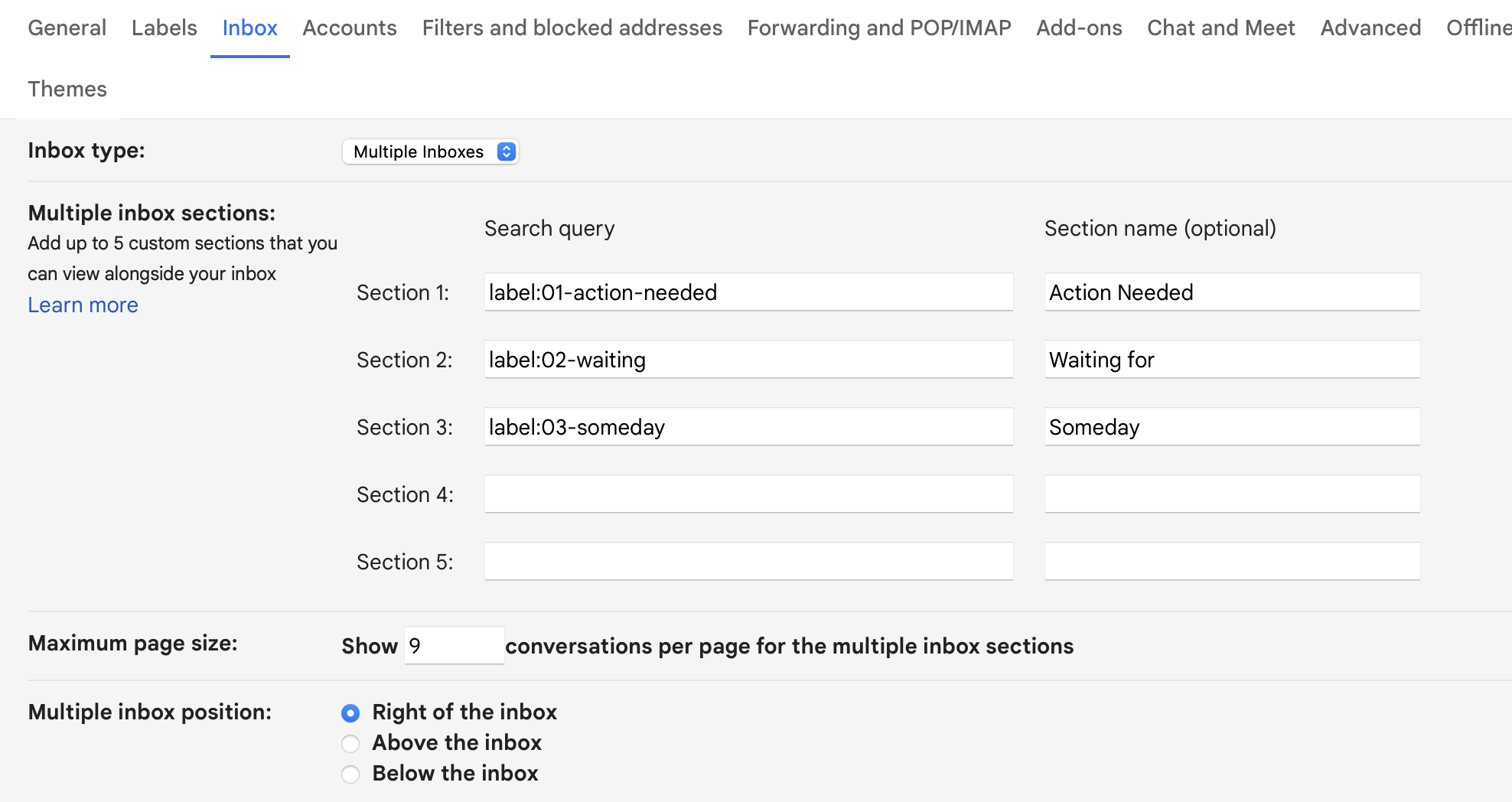
In Gmail settings, I use the "Multiple inboxes" option. This option lets you display additional email lists in the Inbox section. I set it to show those three folders. I display them on the right side, which allows me to have unprocessed emails on the left and already sorted emails on the right.
Apple Mail Configuration for macOS
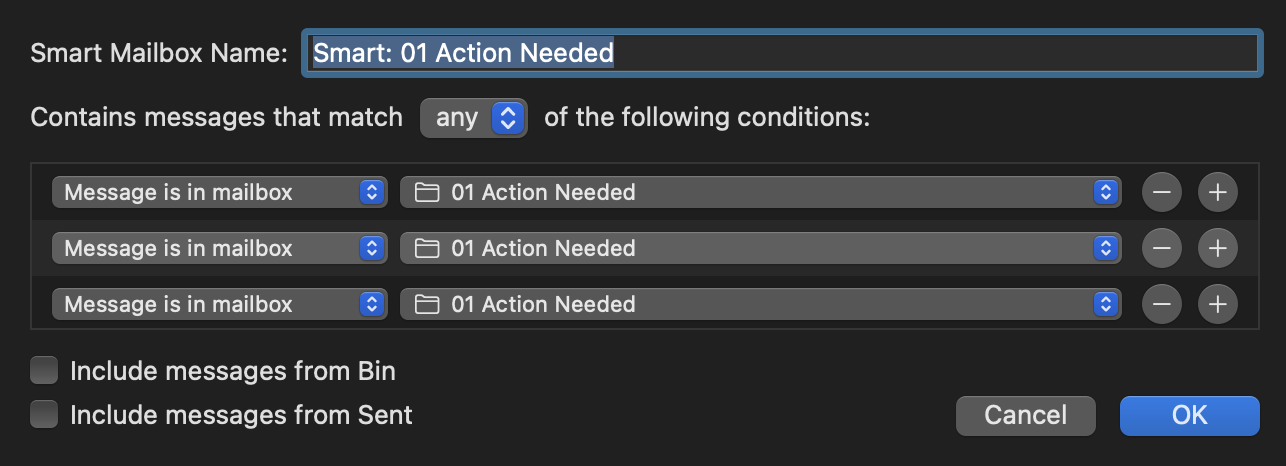
In Apple Mail I use Smart Lists. I have several email accounts and create a list that aggregates emails with a given label from multiple accounts. This gives me a combined "Action Needed," "Someday," and "Waiting For" list.
Summary
Inbox Zero gives you peace of mind and the confidence that you won't miss any email. The key is to regularly review and work with sorted emails. I add these activities as recurring tasks in Todoist (Todoist is where all my tasks and task references flow in).